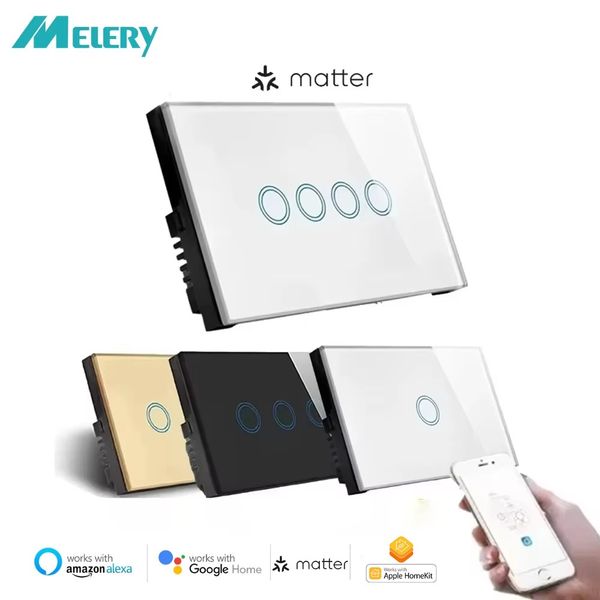


Melery Matter Thread WiFi 智慧燈壁式開關觸控感應器遠端控制,由 Alexa Goog
商品詳情
即刻購買——! ! 7天無理由退款退貨!
本商品適用於“收到商品7天内,可無理由退貨退款”
可安心購買,更無需擔憂售後及保養問題
東九龍倉庫網站https://shophoho.com
客服WhatsApp:9444 2816
目前的:10A
材料:塑膠
開關類型:觸摸開/關開關
保固單:1 年
型號:WLS228-物質
Features:matter switch
Item Type:SWITCHES
Brand Name:Melery
Is Smart Device:YES
Origin:Mainland China
Certification:RoHS,FCC,CE
Brand Name:Melery
Matter WiFi 智慧開關按鈕燈開關美國與 Home Google Home SmartThings APP 搭配使用中性需求
規格:
類型:1/2/3/4 組觸控式 Wi-Fi 開關
材質:PC V0防火+強化玻璃面板
額定電壓:AC100V-240V
無線網路:2.4GHz,IEEE 802.11 b/g/n
支援:iOS
無線耗電量:<0.3W
安全機制:WPA-PSK/WPA2-PSK
-Melery依照 Matter 標準協議開發。這些產品都通過CSA的Matter認證,可透過uHome+ App、Apple Home App/HomePod Mini音箱、Alexa App/Echo音箱、Google Home App/Google Nest Hub音箱、Smartthings App/Samsung Smartthings hub等生態平台進行綁定和控制。
揚聲器-語音控制:
-可以透過 Alexa、Siri、Google Assistant 或其他通過 Matter 認證的揚聲器實現語音控制。
-透過 Alexa 進行語音控制
開啟/關閉裝置:Alexa,開啟/關閉燈。
調整顏色:Alexa,將燈光設定為紅色。
調整亮度:Alexa,將燈光設定為 80% (如果支援調光功能)。
-相容於 Siri 等主要語音助手,可實現對家中照明和電器的免持控制。只需說出你的命令並
觀察你的家做出反應。
應用程式控制:
-該設備可以透過 uhome+、Alexa、Apple Home、Google Home、Smartthings App 或其他整合了 Matter SDK 的應用程式進行控制。應用程式控制
-設備成功配置網路後,可透過各種APP或音箱完成開關機、亮度調節、顏色調節等功能的控制,
設備恢復出廠設定:
-對於插座或開關,按住按鈕 5 - 10 秒即可重設。重置過程中,指示燈將閃爍三次。對於照明產品,請開啟、關閉電源五次。重設時,指示燈將閃爍三次。
設備網路配置:
-每個裝置都有一個 Matter QR 碼和一個 11 位元短代碼。如需綁定設備,可透過配對App掃描二維碼或輸入11位元短代碼進行配對綁定。
輕鬆設定和群組控制:
-它與Apple HomeKit相容,只需使用智慧WiFi開關並掃描HomeKit代碼,整合並設定它,無需安裝其他APP。
輕鬆設置,一鍵控制:
-有了 Matter,您每次購買新設備時都無需下載和註冊多個製造商的應用程式。相反,直接前往經過認證的智慧家庭平台(如 Apple Home、Alexa、Google Home、SmartThings)來控制您的所有 Matter 裝置。
高品質和奢華的設計:
-高品質和豪華的設計,配有大實體按鈕用於按壓控制。您可以將其安裝在臥室或客廳。它的簡約設計可與任何室內裝飾相得益彰,使其不僅僅是一個開關,更是一個彰顯個性的作品。
易於安裝:
-專為簡單的 DIY 安裝過程而設計。適用於標準牆盒並連接到您的家庭 WiFi 網路。
時間設定
-智慧定時開關,設定定時器後,將自動開啟,是日常時間安排必不可少的,為您帶來舒適智能的生活方式。
設備配對有多少種方法?
-透過 uHome+ App 進行網路配置
步驟1:從應用程式市場下載uHome+應用程式。
第二步:將設備恢復原廠設置,進入配網狀態。
步驟3:開啟uHome+ App,點選首頁右上角「+」號,進入網路設定功能介面。在網路配置介面,點選右上角的圖示(圖中已經標註),然後掃描二維碼,即可新增裝置。或在二維碼掃描介面有輸入配對碼的按鈕。點選輸入配對碼按鈕,進入配對碼配對模式。
-透過 Apple Home App 設定網絡
1 .環境檢查
- iPhone的系統版本需大於等於16.2版本。
應該有一個 Matter 控制中心,並且可以使用以下任何裝置:Home Pod、Home Pod mini、Apple TV。
連接2.4G WiFi網路。 WiFi密碼不能為空或WiFi不能被隱藏。
2 。網路設定
步驟1:使設備進入網路設定狀態。
步驟 2: 開啟 Home App,點擊主頁上的「+」號,然後選擇「新增或掃描配件」。使用二維碼掃描設備或使用配對碼進行配網(還需要點擊“更多選項”,點擊“我的配件”讓它顯示在這裡,然後點擊“輸入代碼”進入配對碼配網界面),然後根據提示添加設備即可。
-透過 Alexa App 設定網絡
1.環境檢查
Alexa App 版本:大於或等於 2.2.491118.0。
應該有一個 Matter 控制中心,並且可以使用以下任何設備:
裝置
版本
迴聲/迴聲點
第五代:Echo Dot、Echo Dot(有時鐘的第五代)
第四代:Echo、Echo Dot、Echo Dot(有時鐘的第四代)
第三代:Echo、Echo Dot、Echo Dot(有時鐘的第三代)
迴聲秀
第三代:Echo Show 10、Echo Show 15
第二代:Echo Show 8、Echo Show 5
第一代:Echo Show、Echo Show 8
2 網路配置
步驟1:使設備進入網路設定狀態。
Step 2: Open the Alexa App, click on the "+" sign on the home page, choose "Add Device", then choose "other", and then choose "Connect your Matter Device". On the prompt interface shown in the last picture below, you can choose whether to pair by scanning the QR code or entering the pairing code, and then scan the code or enter the pairing code as required to complete the addition.
-Network Configuration via Google Home App
4.1 Environment Check
Install the Google Home app.
There should be a Matter control hub, and any of the following devices can be used: Google Nest Audio, Google Nest Hub, Google Nest Hub (2nd gen), Google Nest Hub Max, Google Nest Mini, Nest WiFi Pro.
4.2 App Network Configuration
Step 1: Open the home page of the Google Home App, click on the "+" sign, and after jumping to the next page, click on "Set up device" and then choose "New device". Add the device according to the prompts.
Step 2: After the device is successfully added, you can set the room location to which the device belongs and modify the device name.
-Network Configuration via Samsung Smartthings
1 .Environment Check
Install the Smartthings app, and the version of the app should be greater than 1.8.01.22.
There should be a control center, which can be either Smartthings Station or Smartthings hub.
2 .App Network Configuration
Step 1: Put the device into the network configuration mode.
Step 2: Log in to the Samsung Smartthings App (the App has already been bound to the control center). Click on the "+" sign in the upper right corner of the home page. After jumping to the next page, click on "Scan QR code" or "Enter setup code".
How to Share with fifferent Ecosystems?
Sharing uhome+ with Other Ecosystems
-Matter devices can be shared across different ecosystems through the apps of various ecosystems. Click to enter the device settings page in any app, then click on "Device Sharing" to pop up the device sharing pairing code. Next, use the apps of other platforms to enter the device sharing pairing code or scan the sharing pairing code, and complete the addition according to the prompts.
Sharing Google with Other Ecosystems
-On the main interface, long-press to enter the control interface of the device. Then click on the gear icon in the upper right corner to enter the settings. Select the connected Matter applications and services, and then choose "Associated Applications and Services" to select sharing by pairing code or QR code.
Sharing Alexa with Other Ecosystems
-Enter the device interface, click on the gear option in the upper right corner to enter the settings interface, then choose "other assistants and apps", and then select "add another".
Sharing Apple with Other Ecosystems
-Swipe down to the bottom on the device control interface, and then choose to turn on the pairing mode to share the pairing code.
Sharing Samsung with Other Ecosystems
-On the device control page, click on the three dots in the upper right corner, choose "Share with Other Services", and then select "QR code".
Accepting Shares from Other Ecosystems
-If sharing from uhome+ to the Apple platform, first put the device into the sharing state according to section 4.1, and then refer to section 2.3 to conduct the network configuration operation using the Apple ecosystem. The sharing from other ecosystems follows a similar operation process. First, put the device into the sharing state, and then use the receiving ecosystem to conduct network configuration. It should be noted here that some ecosystems can only share pairing codes or QR codes, so when configuring the network, it is necessary to operate in the way of using the pairing code.
Q&A -- Precautions for the Use of Each Ecosystem
1. The Pairing Entrance for Matter Cannot Be Found in Google's iOS App
-Currently, only the Android version of the Google ecosystem has been released, while the iOS version has not yet been released.
2 .Why Does My Device Fail to Configure the Network?
-Please confirm whether the mobile phone used for network configuration and the ecological speaker are within the same WiFi local area network.
Confirm whether the router has set up AP isolation (where connected devices cannot communicate with each other, playing an isolating role), is not on the 2.4G frequency band. Meanwhile, iPhones cannot configure the network for router networks without passwords or with spaces in the SSID.
-The speaker may be in a dormant state if it has been idle for a long time. You can try restarting the speaker.
-The Echo speaker has a password-remembering function. If the WiFi password of the router has been adjusted, it is recommended to clear the function in the App that allows the speaker to use the original password for network configuration, and try to reset the speaker and the App.
3 .Why Can't My Device Enter the Sharing State Again After Exiting the Sharing?
-The Apple and Alexa ecosystems have a time limit for a single sharing session. The time limit for Apple is 5 minutes, and for Alexa it is 15 minutes. Before the time limit expires, the sharing state cannot be started again. At this time, you can turn the power of the device on and off. After the device reconnects, then open the sharing again.
Tips:
Be sure that you are using 2.4GHz WiFi when connecting with the smart bulb. And WiFi must be detectable status. Many routers have 5 GHz and 2.4 GHz network and your phone will always automatically connect to the 5 GHz network. So, you have to completely turn off your 5 GHz network by going to your router settings (enter the router IP address into your internet browser, usually something like 192.168.1.1), forcing your phone to connect to the 2.4 GHz network.
送貨詳情
付款方式


Melery Matter Thread WiFi 智慧燈壁式開關觸控感應器遠端控制,由 Alexa Goog
數量
同店推薦